Automatic updating of the list
DOCUMENT MANAGEMENTRegularly update the list of documents to show processing status.
Explore how it works
Explore a communication’s journey from receipt to classification and assignment.
Prepare the submissions received for review.
Organize communications and extract key data to guide your management.
Know the status of each document and see the information obtained.
A first look at what you can do with this product.
Collect communications in different formats to start your review.
Make scanned documents legible and take advantage of their content.
Review each communication with key data extracted from its content.
Organize trades and formalities according to the content and terminology of your process.
See at what stage each document is at and respond to errors in a timely manner.
Find communications and check your information and history when you need it.
Select a category in the map to explore its features.
Choose a category or search across all product features. Browse the results page by page.
132 features
The search includes all categories.
Regularly update the list of documents to show processing status.
For environments without cloud storage server, documents can be saved directly into the server file system.
All documents loaded are saved to a private storage server (MinIO), equivalent to an enterprise hard drive on the internal network.
The user can take documents from his desktop or folders and drop them directly onto the screen to upload them, without needing to search manually.
Allows you to select and load multiple documents in one operation.
The system does not upload files automatically; it requires the user to press a confirmation button to start the transfer.
It allows you to download to the user's computer the original file that was uploaded to the system.
Before deleting documents a warning message is displayed indicating the names of the files that will be deleted, requesting confirmation from the user.
Delete button in each row to delete a specific document, with prior confirmation to avoid errors.
When several documents are selected, a button appears that deletes them all simultaneously, with confirmation dialog.
While the list is automatically refreshed, an animated icon tells the user that the data is being updated.
Displays the organization's documents in a paged table with number of configurable records.
Supports files up to 50 MB.
The user can sort the list of documents by name or by date of loading, by clicking on the header of each column.
If a document with the same name already exists in the organization, the system automatically generates an alternative name by adding a number or suffix, avoiding overwriting...
Select button that opens the system file browser to choose one or more documents to load.
Check boxes in each row allow you to select several documents at once to apply batch actions to them.
The system accepts images and text documents in different formats.
Before sending documents to the system, a list of selected files with their name, size and type is displayed, allowing you to review and delete unwanted ones.
After OCR, the text is sent to a specialized service (Apache Tika) that extracts textual content more precisely from the processed document.
It classifies trades into categories such as requirements of control entities, reports and circulars.
It classifies procedures in legal categories, including exceptions, prescriptions, embargoes and payment facilities.
Apply AI decision flows to identify the type of document and execute the corresponding sorter.
The system automatically identifies which documents require text recognition (scanned) and which already have digital text, applying the process only where necessary.
The AI analyzes the body of the document to summarize the arguments, reasons or facts that justify its existence or the contained request.
Extracts the request or claim of the sender from the document.
The AI identifies and extracts the most relevant legal and administrative terms from the document, facilitating subsequent search and reference.
The system automatically detects and extracts the file/reference number or code of the document, if present.
Extract sender, recipient, subject matter, objective, summary, legal terms and date of receipt via AI.
Artificial intelligence determines whether a document is an Office (formal communication) or a Procedure (application requiring administrative resolution), classifying it before the...
The content of each document, together with its extracted metadata, is indexed in Apache Soler to allow fast and efficient searches.
The text recognition technology can be changed between different engines (OcrMyPDF, Tesseract) according to the needs of the organization, without modifying the rest of the system.
For scanned documents or images, the system automatically converts visual content into computer-readable text, allowing for further analysis.
Each document follows a mandatory sequence: (1) Content standardization → (2) Metadata extraction → (3) Classification.
The optical character recognition engine processes documents in Spanish and English simultaneously, ideal for organizations with bilingual documentation.
When a document is being actively processed (normalizing, extracting or sorting), a rotating indicator appears on the corresponding chip, informing the...
Tasks have a maximum number of configurable retry; if they fail repeatedly, they stop and record the error for revision.
Each task records its start time, allowing to calculate how long it took to complete for performance analysis.
The processing tasks pass through clearly defined states: Pending → In Execution → Successful / Failed, with record of each transition.
Each document in the list shows three indicators (N, E, C) that indicate whether it has already been Normalized, Extracted and Classified respectively, with colors that distinguish states...
After OCR processing, temporary files generated during analysis are automatically deleted from the server to free up space.
It applies time limits to standardisation and extraction tasks and cancels those that exceed them.
During processing, the system updates descriptive messages in real time about what it is doing: getting the file, running OCR, sending to the engine of...
The system checks before starting any task if there is already an ongoing one for the same document and type of operation, avoiding processing the same file twice...
Each processing operation is recorded in the database as a task with unique identifier, type, status, action counter and progress messages.
The details panel is only enabled when the document has already been standardized and has its content extracted, avoiding displaying incomplete information.
Expandable view within the table showing all metadata extracted from the document: category, subcategory, origin, recipient, subject, summary, objective...
It shows who created the record in the system, who last modified it and the corresponding dates.
Displays the main classification (Office/Promitment) and the specific subcategory assigned by AI to each document.
Shows who the document was addressed to and their position or organization.
It shows the date on which the document was received, as detected by AI in the content.
Shows the arguments and reasons underlying the communication or request of the document.
It clearly presents the specific request or claim contained in the document.
It presents who sent the document, which organization it belongs to and its reference code or identifier.
It presents a summary generated by AI with the most relevant points in the content of the document.
Lists the legal and administrative terms identified by AI in the document.
Updates the index when a document is processed or changes its information.
Searches can be combined with filters by specific fields (category, date, origin, etc.) for more accurate results.
It allows you to search for documents using words or phrases that appear anywhere in the document, not just in the title.
When a document is removed from the system, it is also deleted from the search engine to maintain consistency between the two.
Index the content and metadata of documents in Apache Soler for consultation.
Search results can be sorted by different fields and navigated on pages to handle large volumes of documents.
Before updating or deleting records in the search engine, the system verifies that the document exists in the index, preventing errors.
The system is divided into independent components: web interface, API, processing workers, database, search engine, file storage and service...
Link processing tasks to Redis.
Includes automatic reconnection to the messaging service when connection is interrupted.
Pack the components in Docker containers for deployment and updating.
Heavy tasks such as text recognition and AI sorting run in the background (with Celery), without blocking the user interface or affecting the user's...
It allows simultaneous processing of documents by asynchronous workers.
The components of the system communicate with each other through a virtual private network (Docker network), without exposing internal services abroad.
Sets the automatic restart of services for failure.
Separates the web server from document processing workers.
Access to the system is controlled by security tokens (JWT) that verify the user's identity in each operation, without the need to send passwords repeatedly.
Each request from frontend to backend automatically includes the security token in HTTP headers.
Sets the authorized origins for web requests using CORS.
Users belong to groups with specific roles that determine what actions they can perform within the system.
User permissions are loaded when logging in and stored in the application's global state, being available throughout the interface without repeated queries to...
Each access token contains the user's identity, organization, email, username and session identifier, allowing precise authorization.
The system connects to Creangel Technologies' central authentication platform to verify users and obtain their permissions and groups.
The system only accepts file formats defined in its configuration, rejecting any files of type not allowed.
The system verifies that no file exceeds the limit of 50 MB before processing.
Manages the credentials of services using environment variables.
In the loading panel, the user can filter the selected files to upload by typing part of the name.
Any URL that does not correspond to a known page is captured and redirected to the corresponding error screen.
While the table data is loaded, a progress indicator is displayed so that the user knows that the system is working.
When a user accesses a non-existent address, a friendly page is displayed indicating that the path was not found, with option to return.
If an unexpected error occurs in the application, a friendly error screen is displayed instead of a blank screen or technical message.
A drop-down menu in each row shows the actions available according to the status of the document (Normalize, Extract, Sort), automatically hiding the actions already...
Previous/next page buttons with counter showing the range of current records (e.g. 1-10 out of 45), facilitating orientation in large listings.
When something fails, the system displays a descriptive message indicating which operation failed and in which document, helping the user understand the problem.
The user can change how many documents are displayed per page by selecting between predefined options (5, 10, 50, 100, 500).
Keeps the loading panel available while the user consults the document list.
Dedicated section with information about the project, its team and organizational context.
The main page presents the IFINDIT system, its purpose and main functionalities visually.
Informative messages emerge on the screen informing the result of each operation (successful loading, error in sorting, process initiated, etc.), disappearing automatically...
Request results from AI in a defined data structure for processing by the system.
Use invocation of tools to request structured classifications.
The classification flow is modeled as a graph of states with LangGraph, allowing conditional ramifications (Office vs.
The system uses OpenAI's GPT-4o Mini language model to perform metadata extraction and document classification, taking advantage of its data processing capabilities.
If the AI does not return a valid response or fails, the system captures the error and continues with a default value, avoiding process interruption.
It uses classification instructions with definitions of Colombian documents and legal terminology.
Set the model to zero temperature to reduce variation in classifications.
LangChain is used as an abstraction layer to build conversation flows with AI, facilitating system maintenance and evolution.
All system information (documents, metadata, tasks) is stored in a PostgreSQL database.
When deleting a document, its associated metadata are automatically deleted, maintaining the referential integrity of the database.
The API supports complex filters in document listings, including text search in specific fields, sorting and pagination.
The information extracted by AI (category, subcategory, summary, terms, etc.) is stored in a separate table linked to the document, maintaining the data model...
Changes in the database structure are managed by Alembic, allowing the schema to be updated in a controlled and versioned manner.
Each document records its status in the pipeline: if it requires OCR, if its content was standardized, if it is under normalisation, if it was extracted, if it is under extraction, if it was...
Each record in the database saves who created it, who last modified it, and the creation and editing dates.
The system allows that two documents with the same name cannot exist within the same organization, preventing duplicates.
The legal terms extracted are stored as text arrangements in PostgreSQL, allowing multiple values in a single field.
All system services are available via an REST API under the /v1/ path, facilitating maintenance and compatibility with future versions.
Allows you to change the name of an existing document.
Starts the IA sorting process for a specific document, returning a task ticket.
It allows you to obtain the detailed information of a specific document using its unique identifier.
It allows you to obtain all metadata extracted from a document (category, subcategory, summary, legal terms, etc.).
It allows you to upload one or more files to the system in a single request, creating corresponding records in the database.
Allows downloading the original document file as it was loaded.
Removes a document from the system, including its file in storage, its record in the search engine and all its metadata.
Starts the process of extracting metadata with AI for a specific document, returning a task ticket.
It allows you to obtain lists of documents with pagination, sorting, filtering and total counting options.
Start the OCR process for a specific background document, returning a task ticket for tracking.
All API responses follow a uniform format with status, message and data fields, making it easier to integrate with other applications.
Independent microservice based on Apache Tika that receives documents in different formats and returns their textual content.
Notifications of success or error are managed through the global state.
The web application uses Redux to manage a centralized state.
The system dynamically controls which actions are available to the user according to the current state of the application.
The data of the organization to which the user belongs are loaded on startup and kept available throughout the session.
The name, identifier, mail and other data of the connected user are stored in the global state and are available throughout the application.
The user's groups and roles are stored in the global state, allowing to display or hide functionalities according to permissions.
The user session status is saved in the browser storage to keep the session active if the user reloads the page.
We didn't find features with those terms. Try a different word.
Explore how it relates to other products and shared capabilities.
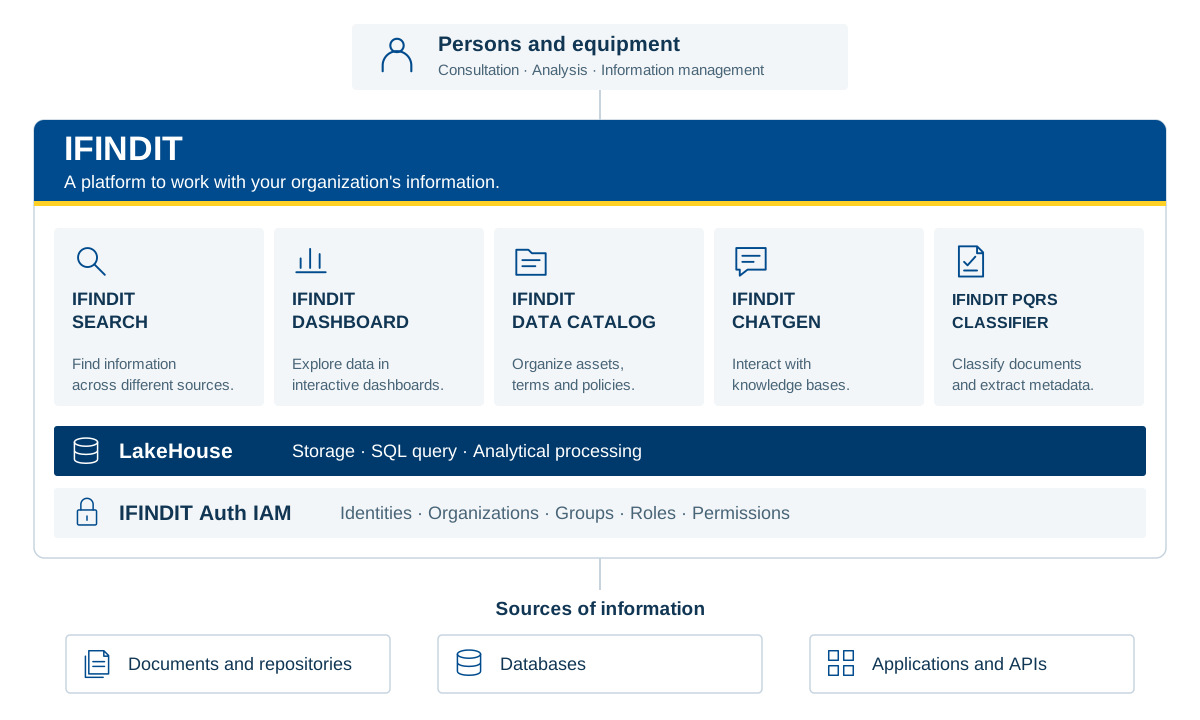
Consultation · Analysis · Information management
Documents and Repositories · Databases · Applications and APIs
A functional view of IFINDIT and its shared capabilities. Each product connects different needs of the organization.
View platform architectureTell us what you need to find, analyze or organize. Discover IFINDIT with the Creangel team.